Lenovo Legion 5 won’t turn on or shows a black screen: SSD, charging port and motherboard
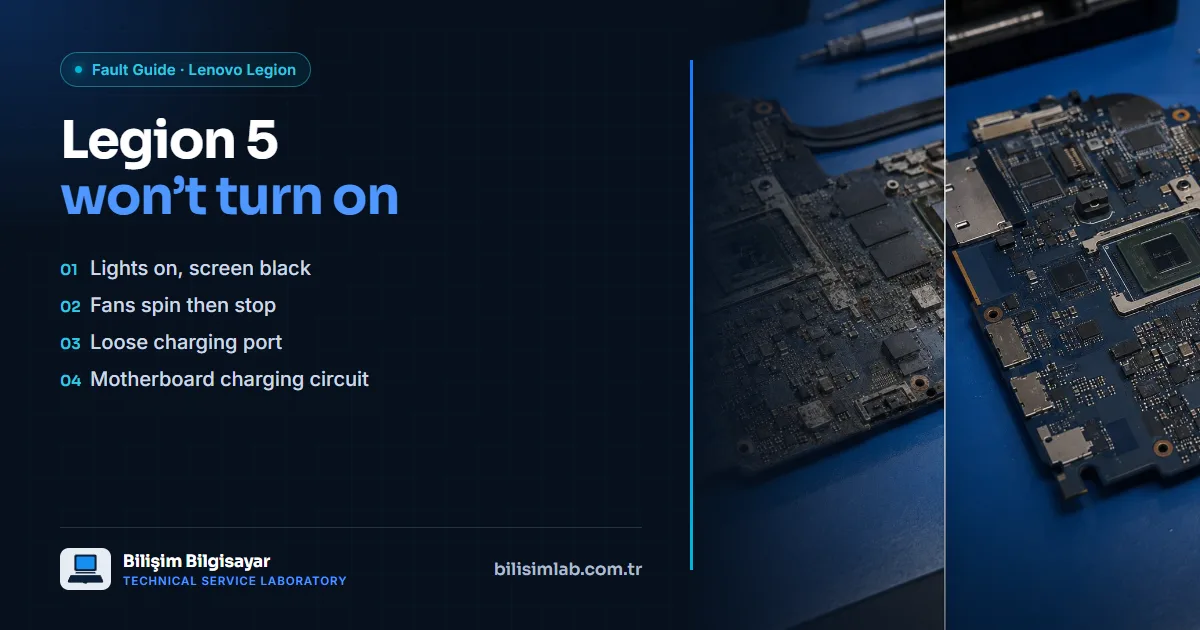
A common complaint on the Lenovo Legion 5 series is the laptop not turning on or staying on a black screen. Sometimes the power light and keyboard backlight come on but there is no picture; sometimes the fans spin for a few seconds and stop; sometimes there is no response at all. The symptom may look the same, but the causes differ.
Possible causes by symptom
Lights on, screen black
- Not waking from sleep/hibernate: for some users the screen does not come back when waking from sleep. Holding the power button to shut down and starting again solves it; if it happens often, drivers and BIOS updates should be checked.
- A failing SSD: on a Legion, a failed SSD can stop the laptop completing its power-on self-test (POST); it reaches neither the BIOS nor the system. In that case the drive is removed and tested.
- RAM or graphics card: loose or faulty memory and graphics circuitry can also cause no picture. Details: computer turns on but no display.
Fans spin and stop
Fans spinning briefly and stopping shows the laptop cannot complete its self-test. The cause may be the battery, a supply circuit, memory or the drive. It should be found by measurement, not by swapping parts on a guess.
No response, or charging comes and goes
- Charging port: the rectangular charging input on Legions can loosen when the plug is strained or the laptop is moved while charging; Lenovo’s user forums include reports of the power port breaking again and again. As contact comes and goes, so does charging.
- Motherboard charging circuit: an input that shorts or delivers unstable current can damage the charging IC and its surrounding circuitry; the laptop will not turn on at all. See charging circuit repair.
Checks you can do at home
- Try the original adapter; make sure the plug sits fully in the socket and the cable is not damaged.
- Unplug the adapter, hold the power button for 30 seconds, then plug the adapter back in and try to start it.
- Connect an external monitor; if the picture appears there, the problem is in the screen or display cable.
If the charging port is loose, do not try to make it work by forcing the plug at different angles; the risk of a short carries the fault to the motherboard.
What we do in the lab
At Bilişim Laboratuvarı we find the fault by measuring the adapter output, charging input, battery, supply lines, memory and drive one by one. A loose charging input is replaced and firmly secured; a faulty component in the charging circuit or supply line is replaced under the microscope. Instead of a motherboard replacement, we bring the laptop back to life with a laptop motherboard repair.
We hand every repair back with a guarantee; if the same fault returns within the warranty period, we assess your device free of charge.
For other Lenovo models, see our Lenovo repair service page. For your Legion, submit a fault report. You can bring it to our lab in Küçükçekmece, or if you are outside Istanbul, you can send it to us by cargo.
Frequently asked questions
My Lenovo Legion 5 lights up but there is no picture — why?
It may be a software cause such as failing to wake from sleep, or a failed SSD, memory or graphics circuit preventing the self-test. An external monitor test and measurement tell them apart.
My Legion charging port is loose — what should I do?
Do not force the plug to make it work; a loose contact can cause a short and damage the motherboard charging circuit. The input should be replaced and firmly secured.
If my Legion will not turn on, does the motherboard need replacing?
Usually not. The fault is generally a single component in the charging circuit or a supply line and is repaired at component level.
Is the Lenovo Legion repair guaranteed?
Yes. We hand the repair back with a guarantee; if the same fault returns within the warranty period, we assess your device free of charge.
Do you have a similar problem with your device?
Report a FaultRelated posts
- Are laptops’ “chronic problems” really chronic? Known faults model by model, and their permanent fixes
- MacBook Pro flexgate: stage-light effect at the bottom, screen going dark at an angle
- ASUS TUF Gaming broken hinge and screen flicker: fixes for the F15, A15 and FX505
- MSI GF63 Thin broken hinge and overheating: causes and a permanent fix